

- Track and compare experiments.
- View a clear timeline of how an agent’s behavior evolves across experiments.
- Track prompt versions and understand how version changes impact performance.
Overview
Tags and Metadata are added to logged Traces and Spans. Tags - short, flat labels (strings) you assign to a trace or span to make them easy to group and filter.- Unlimited number of tags per trace/span (practical limit ≈ 50)
- Case-sensitive strings ≤ 50 chars each
- Ideal for boolean-style filters (e.g., “show me all traces tagged physics”)
- Keys and values are strings ≤ 256 chars
- Appears in Log streams as new columns
- Ideal for structured attributes you can filter, group, and aggregate
Add Tags and Metadata
Note: This guide uses OpenAI as the example LLM. The code snippets are OpenAI-specific,
especially in how the model response is handled (e.g., response.choices[0].message.content).
If you are using a different LLM or following a different Log Your First Trace,
the code will differ slightly—each LLM returns responses in its own format. Adjust the code as needed for your provider.
Follow this step-by-step guide to get started using Tags and Metadata in your AI projects.
Prerequisites
First, follow the Log Your First Trace guide if you don’t already have a Galileo Project set up. Then, use the following steps to add Tags and Metadata to your logged Traces and Spans to your Project.Open your Galileo app
Open your Galileo application in your code editor.
In this guide, we are building on top of the finished demo application from the
Log Your First Trace guide.
Define tags and metadata
Create descriptive tags and metadata to be attached to your logs.
Both Spans and
Traces
can have their own tags and metadata. Define
tags as a list of relevant labels,
and metadata as a dictionary of label types and their values.
The individual tag and metadata values must be strings.
Note: The answer variable is set to the raw text output of the
model so that it can be used later.
Initialize Galileo Logger
Initialize logging by importing and calling the Galileo Logger.
The Project name and Log stream name are used as inputs to define in which Galileo Project and Log stream the logs will be created.
After running our application, the logs will appear in the chosen Project’s Log stream in the Galileo Console.
The Project name and Log stream name are used as inputs to define in which Galileo Project and Log stream the logs will be created.
After running our application, the logs will appear in the chosen Project’s Log stream in the Galileo Console.
Initialize new trace
Initialize a new Trace
to start listening for data to log.
By using the
By using the
tags and metadata inputs, important information is
added to the Trace.Create new span
Create a new Span containing
the data created by running the LLM. By using the
tags and metadata inputs,
important information is added to the Span.Note: In this guide, the tags and metadata used for the Span and the Trace are identical. But, they don’t have to be. You can use different tags and metadata for Spans and the Traces they’re attached to.
Close trace & push logs
To close the new Trace and complete the logging session,
we use
Then,
logger.conclude() with the LLM’s raw text output as the input.Then,
logger.flush() pushes the logs to the selected
Project’s Log stream.Review your code
By adding each previous code snippet to your Galileo application,
it is ready to run and create tags and metadata logs.
Below is the final combined application code for the Log Your First Trace demo application, with our tags and metadata added to logged Traces and Spans.
Below is the final combined application code for the Log Your First Trace demo application, with our tags and metadata added to logged Traces and Spans.
Run your application
Run your Galileo application.
If your application file is named
If your application file is named
app
(as in the Log Your First Trace demo),
you can run it by using the following command in your terminal.Open project in Galileo Console
In the Galileo Console, select your Project
and Log stream in the top-left corner. For each time you run your application,
you will see a new Trace entry in your Log stream. Click the
column icon to open the column selector, and enable the tags and
metadata keys you created earlier to view them in the Trace table.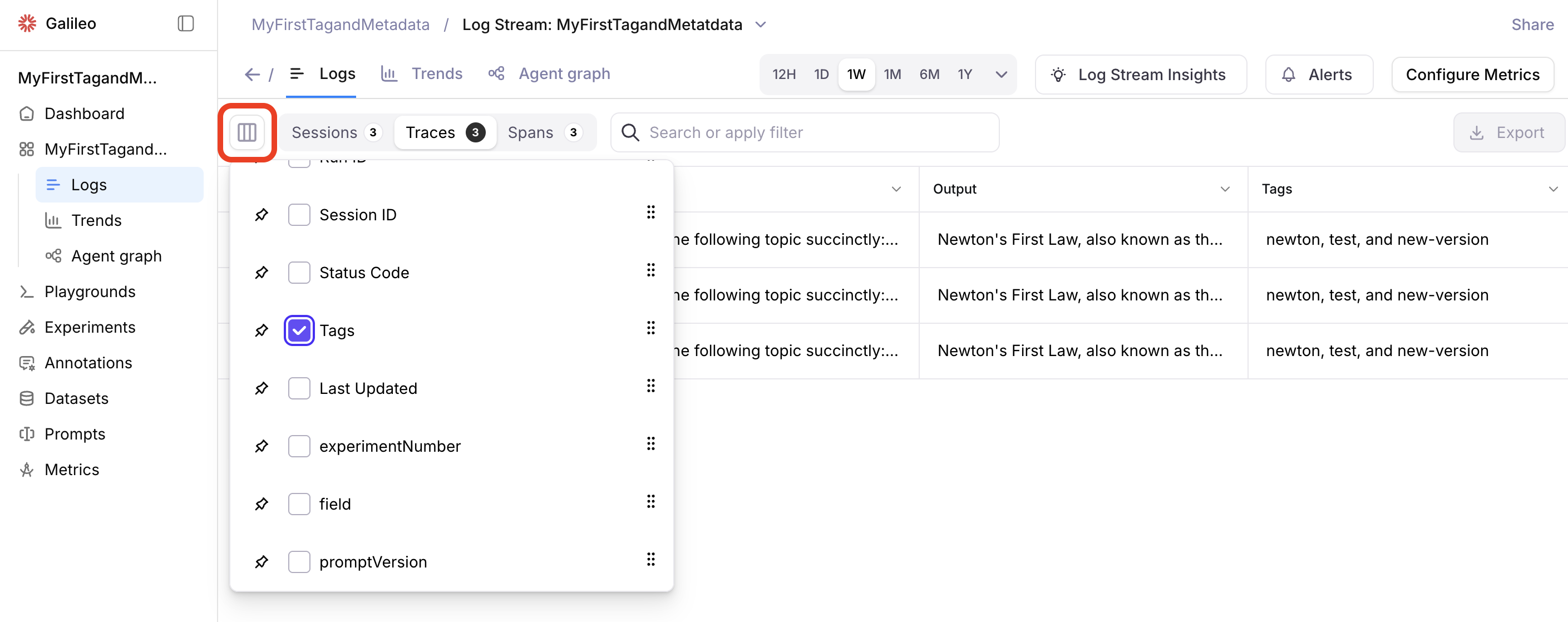
View trace Tags and Metadata
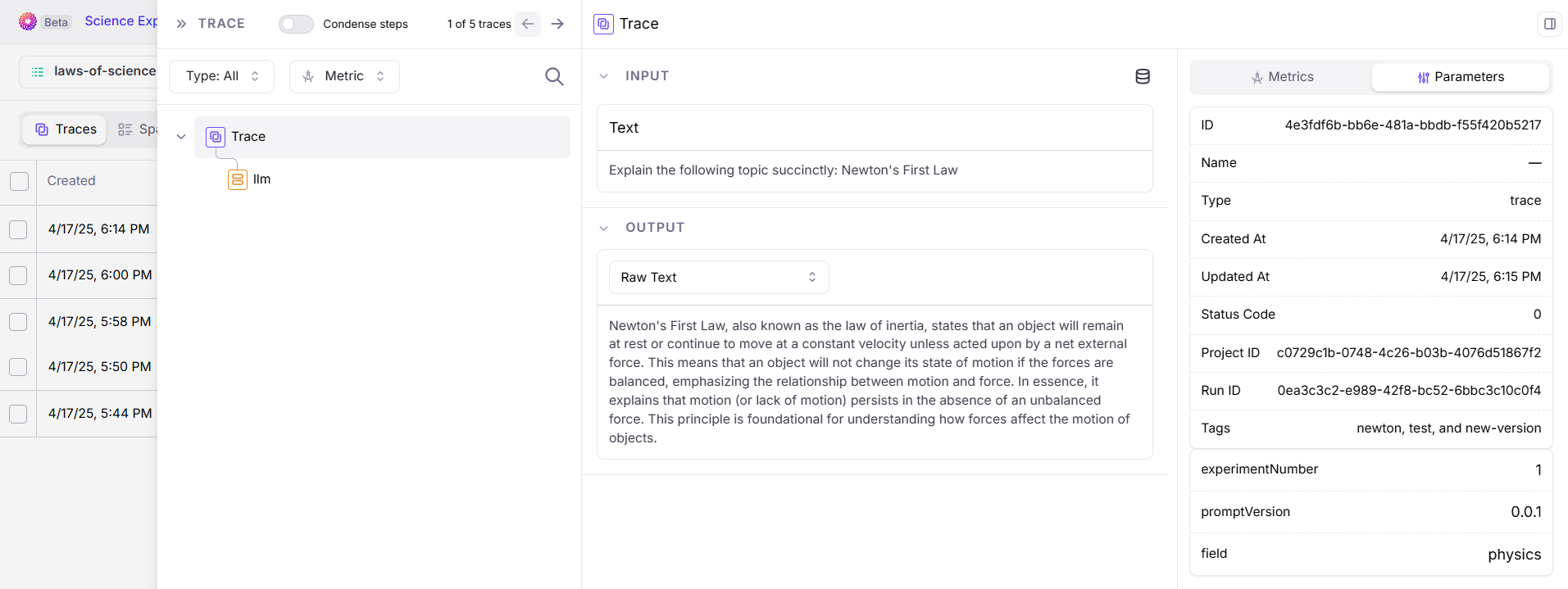
Click on an entry in the list.
You will see the data logged to the Trace. This includes:
You will see the data logged to the Trace. This includes:
-
The raw text input (because we initialized the Trace with
input=prompt) -
The raw text output from the LLM
(because we closed the Trace with
logger.conclude(answer)) -
The tags and metadata we created
(found in the Parameters section in the top-right)
View span Tags and Metadata
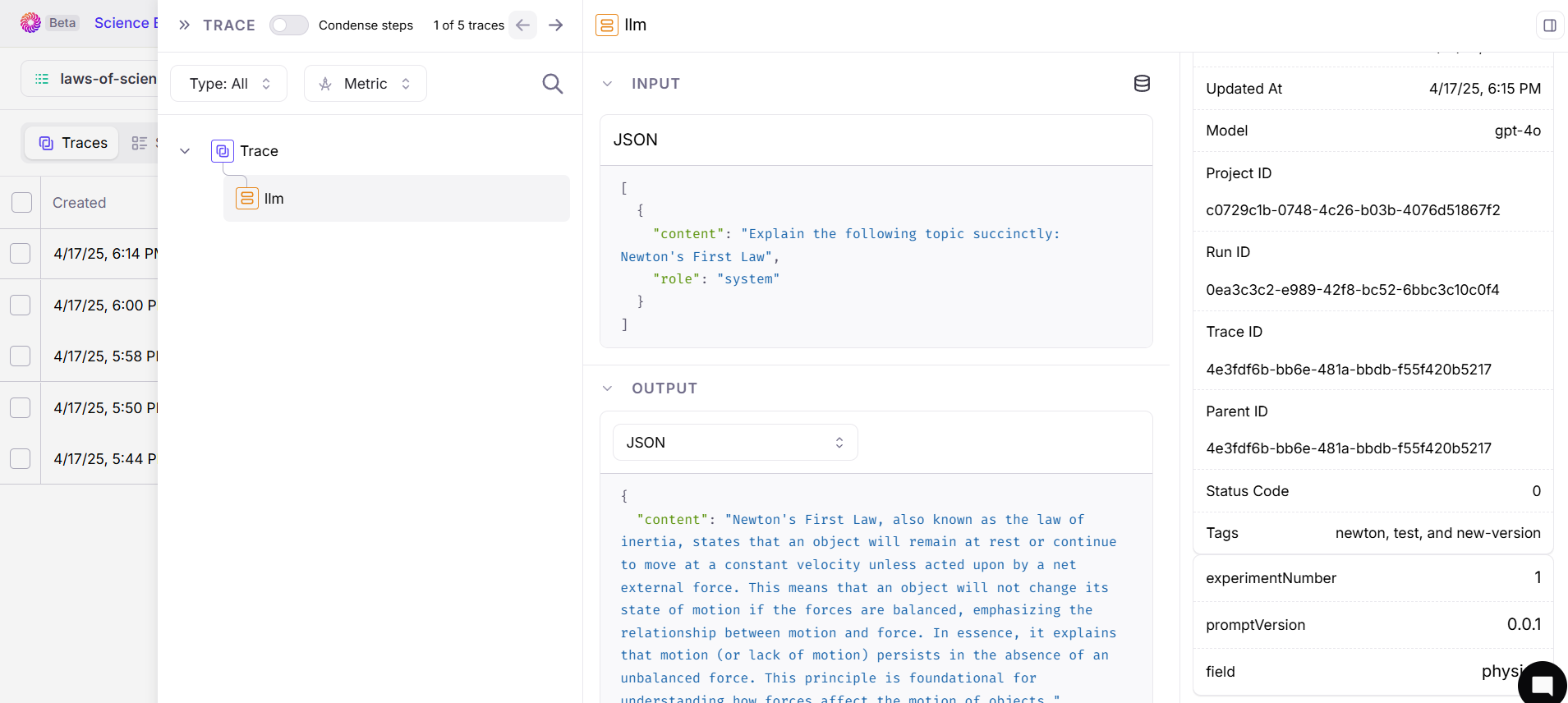
With the Trace open, click the
You will see the data logged to the Span. This includes:
llm button below Trace
in the data map on the left.You will see the data logged to the Span. This includes:
-
The complete JSON LLM input
(because we created the Span with
input=[{"role": "system", "content": prompt}]) -
The complete JSON LLM output
(because we created the Span with
output=response.choices[0].message.content) -
The tags and metadata we created
(found in the Parameters section in the top-right)
Best practices
Use Tags and Metadata to:- Keep your experimentation process organized.
- Coordinate with your team and track development.
- Track individual steps in your AI project with Traces containing multiple Spans that each have their own distinct tags and metadata.
- Use the tag and metadata values in your code to automate alerts and improvements.
- Tag early. Start the trace yourself and pass tags before the first LLM call; otherwise auto-spans may end up in an untagged trace.
- Keep tags coarse-grained. A handful of well-chosen tags beat hundreds of one-offs.
- Standardize metadata keys. Stick to a naming convention (
experiment,user_id, etc.) so dashboards stay tidy. - Avoid sensitive data. Never put PII or keys in either tags or metadata; they become queryable in the UI.