Overview
Galileo enables you to get alerted whenever unexpected things happen. For example:- Your cost is higher than expected
- Your model is hallucinating more than you want
- Users are entering foul language into your app
Example alerts
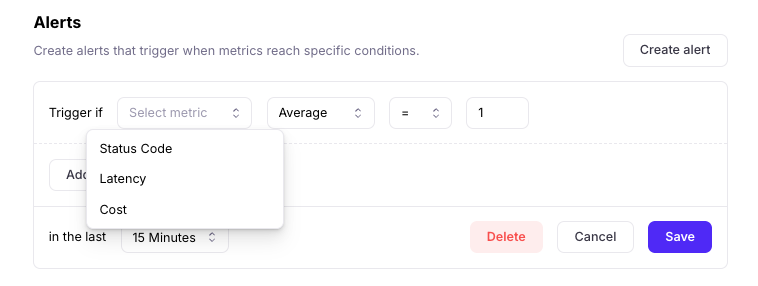
Each alert configuration includes:- a metric e.g. Cost, Correctness, Context Adherence
- an aggregation function: Average, Minimum, Maximum, Count, Sum
- a threshold e.g. > 0.5
- a time window e.g. 1 hour
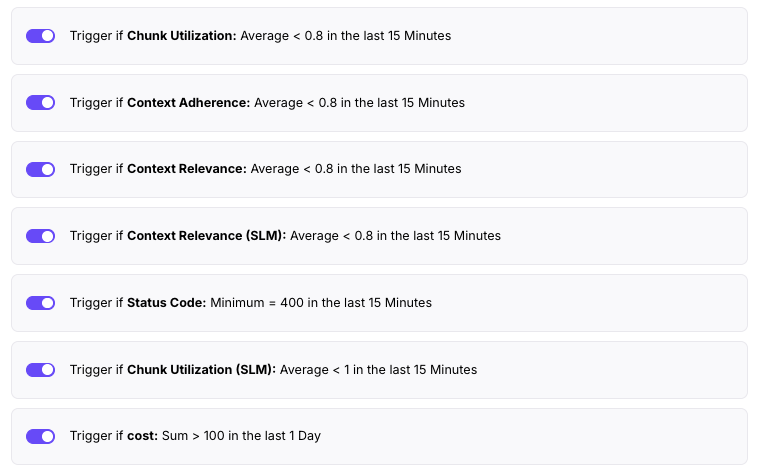
- Exceeding costs: If you want to get alerted with an uptick in cost (above $100/day), select
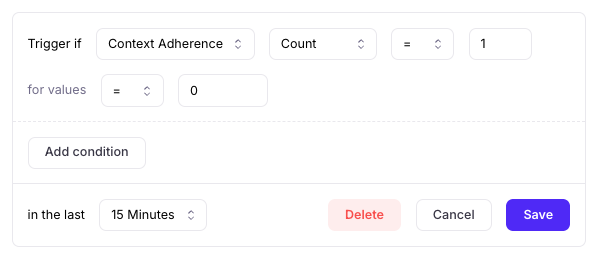
CostSum>100 in the last day - Hallucinations: If you want to get alerted when there’s an extreme hallucination, select
CorrectnessorContext AdherenceCount=1 for values=0 in the last 15 minutes. - Hallucination average: If you want to get alerted when hallucinations are probable (e.g. 20% below perfect threshold), select
CorrectnessorContext AdherenceAverage<=0.80
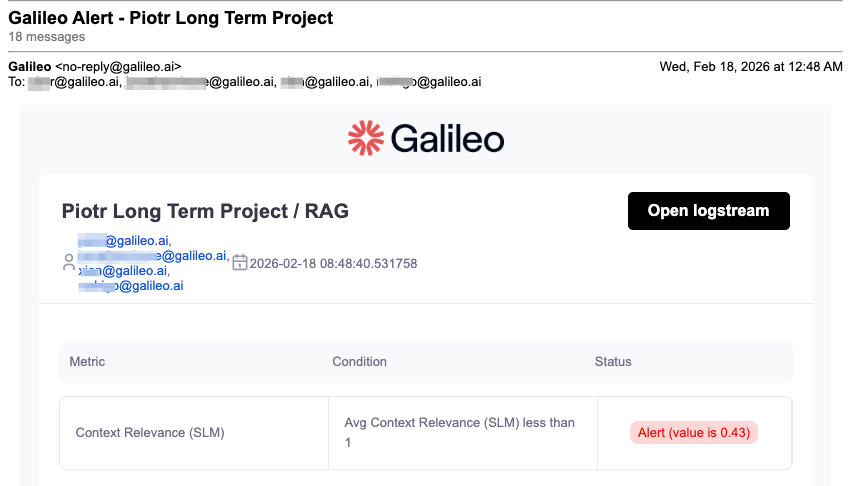
Email notifications
To set up email alerts, add your recipients’ email addresses.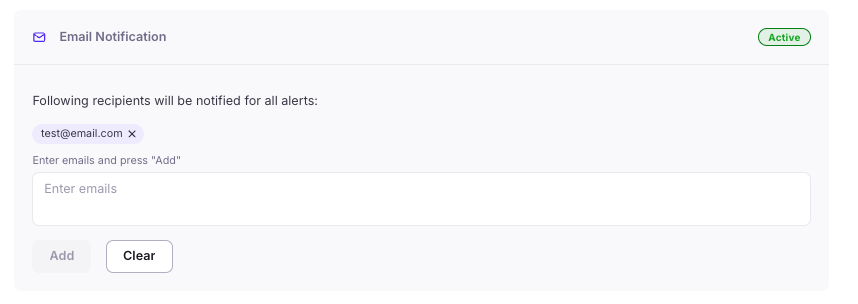
Slack notifications
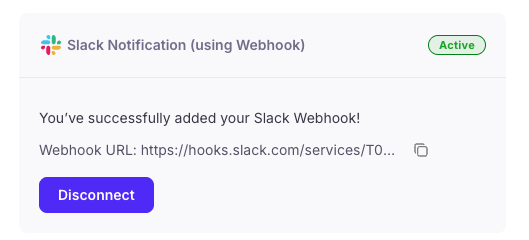
To set up Slack alerts, you’ll need to configure your workspace to receive Slack messages via webhook URLs. Follow Slack’s instructions to generate a webhook URL. A few pointers:- Create a Slack app. If you don’t have an existing manifest file, choose the “From scratch” option to create the app.
- Pick an App Name like “Galileo Alerts” that will help identify the Slack app that the notifications will come from.
- Go to the “Incoming Webhooks” page of your Slack app, and enable the toggle to “Activate Incoming Webhooks”.
- Click “Add New Webhook” and choose the Slack channel you’d like Galileo’s Alerts to go to. (You can also test the webhook by direct messaging your user account.)
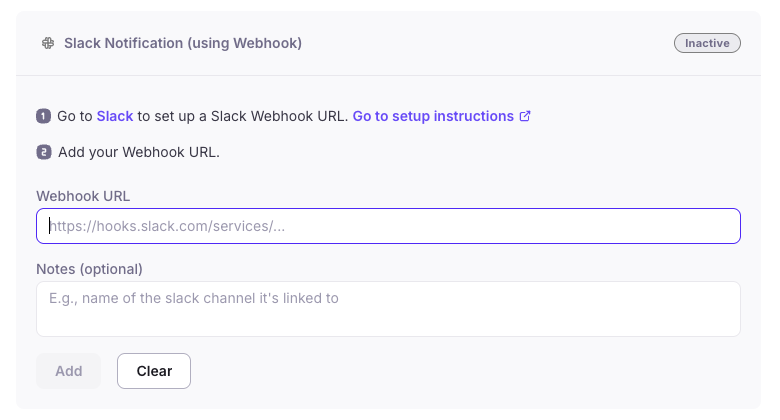
- Copy the generated webhook URL from Slack, and paste it into Galileo’s Slack Notification section.
- In the “Notes” section, add the name of the channel that’s getting notified.
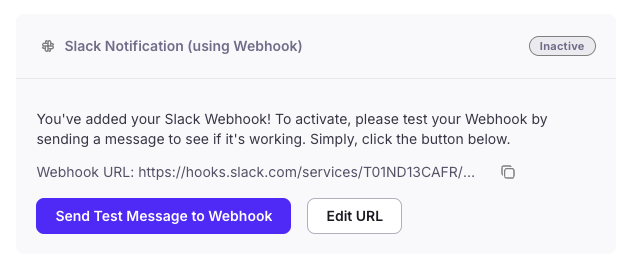
- Try sending a test message to webhook to verify the connection.